
 Try the free Online Voice Recorder Record your voice, trim it and save it as MP3 or WAV. No signup.
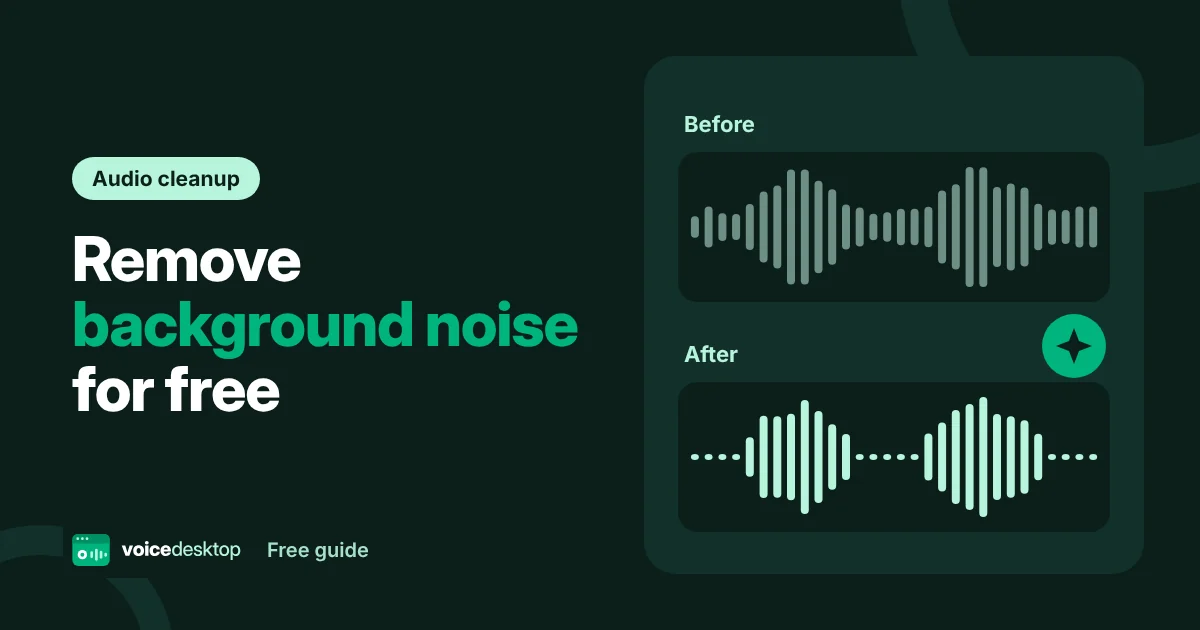
 You record the perfect take, play it back, and there it is: the hum of a fan, the hiss of a cheap mic, or traffic outside the window. Background noise is the most common problem in home recordings. The good news is that modern AI noise reduction can remove most of it in seconds, for free.
What causes background noise?
Most noise in voice recordings falls into a few groups:
- Steady noise: fans, air conditioning, computer hum, fridge buzz and mains hum. This is the easiest to remove.
- Hiss: from low quality microphones or turning the input volume up too high.
- Room echo: your voice bouncing off bare walls. This is harder to fix after recording.
- Sudden sounds: keyboard clicks, dogs, doors and traffic.
AI noise reduction is very good at the first two, helps a lot with the fourth, and can only do a little for echo.
How AI noise reduction works
Older noise filters simply cut certain frequencies, which often made voices sound thin and robotic. AI noise reduction is smarter. It has been trained on thousands of hours of speech and noise, so it learns what a voice sounds like and keeps it, while turning down everything else.
voicedesktop uses RNNoise, an open source model created by Jean-Marc Valin, one of the developers behind the Opus audio codec. It combines classic signal processing with a small neural network, which makes it fast enough to run inside your browser on any device.
How to remove noise from your recording
- Open the free online voice recorder.
- Record your voice as normal, then press stop.
- Under the waveform, find Noise reduction and choose an option:
- Off: your original recording.
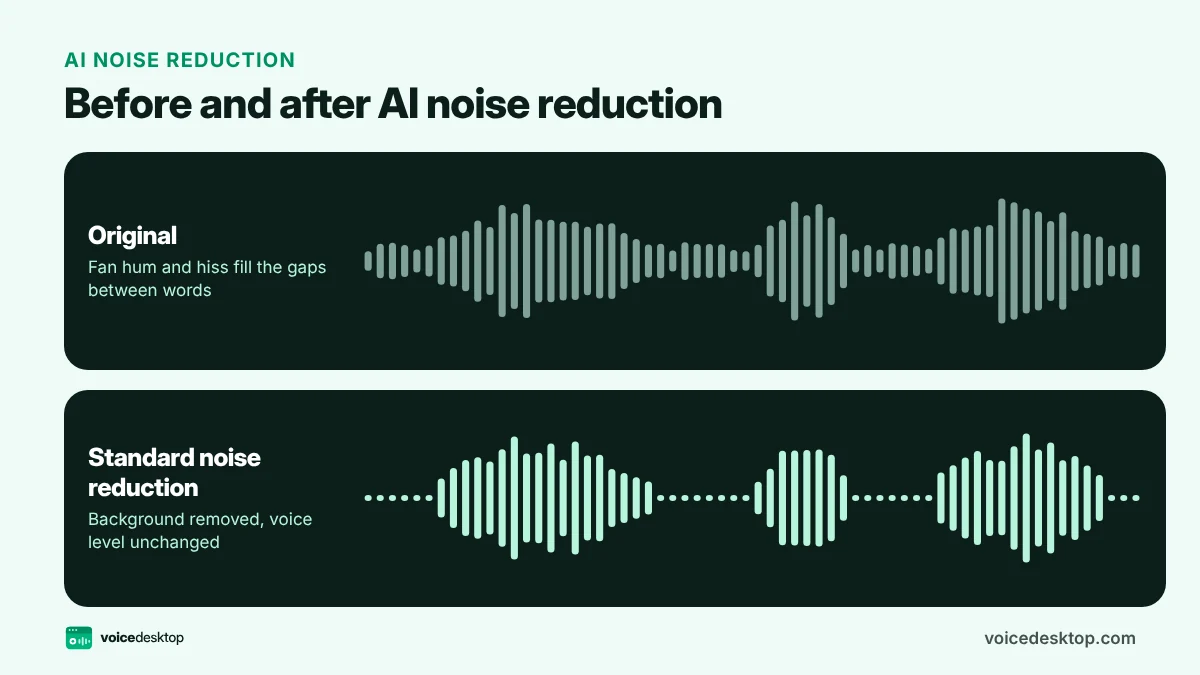
- Standard: removes steady noise such as fans, hum and hiss. This is the default.
- Strong: does the same, then also silences what is left between your words.
- Press Play and switch between the options while it plays to hear the difference. The waveform updates too, so you can see the noise disappear in the gaps.
- Download the version you like as MP3 or WAV.
The noise reduction runs on your device. Your recording is never uploaded.
Standard or Strong: which should you use?
| Situation | Best choice |
|---|---|
| Voice notes and voice overs in a normal room | Standard |
| Laptop fan or air conditioning in the background | Standard |
| Noisy room with lots of pauses in your speech | Strong |
| Podcast clips where silence between sentences matters | Strong |
| Music, singing or instruments | Off |
Noise reduction is tuned for speech, so it can affect music. For singing or instruments, keep it off.
How much difference does it make?
In our tests with a recording that had steady fan noise and mains hum, Standard reduced the background noise between words by about 40 decibels, which is roughly 100 times quieter. The voice level stayed the same. Strong pushed the gaps even quieter. Real recordings vary, but steady noise usually drops away almost completely.
Prevent noise before you press record
Cleaning up noise is great, but avoiding it is even better.
- Turn off fans and air conditioning for the few minutes you are recording.
- Get closer to the microphone. Your voice gets louder while the noise stays the same, so the noise matters less.
- Do not max out the input volume. It adds hiss. Aim for the meter to sit in the middle, which you can check with our mic test.
- Use soft furnishings. Record in a room with curtains, carpet or a sofa to cut echo.
- Pick the right microphone. A headset or USB mic usually beats a laptop’s built in mic.
Clean audio also transcribes better
If you plan to turn your recording into text, noise reduction helps there too. Background noise is one of the main causes of transcription mistakes. Clean your recording first, download it, then use the free audio to text converter.
Frequently asked questions
Is the noise reduction really free?
Yes. RNNoise is open source and runs in your browser, so there are no limits and no cost.
Can I remove noise from a file I already have?
Right now noise reduction works on recordings made in the voice recorder. For an important take, record it again in the recorder and choose Standard or Strong before you download.
Will it remove echo?
It reduces some room sound, but strong echo is hard to remove after recording. Record in a softer room for the best result.
Ready to try it?
The Online Voice Recorder is free, needs no signup and runs privately in your browser.
Open Online Voice Recorder