 Try the free Audio to Text Converter Turn any audio file into editable text on your own device. No signup.
 Typing out a recording by hand is slow. An hour of audio can take three or four hours to transcribe, and that is if you type fast. AI transcription has changed that. Today you can turn an audio file into editable text in minutes, for free, and without uploading it to anyone.
This guide shows you how, and how to get the most accurate result.
What you need
- An audio or video file, such as MP3, WAV, M4A, WEBM, OGG, FLAC or MP4. Or you can record straight from your microphone.
- A computer or phone with a modern browser like Chrome, Edge, Firefox or Safari.
- An internet connection the first time, so the AI model can download.
That is it. No account, no credit card and no software to install.
Step 1: Open the free transcription tool
Go to the audio to text converter. If your file is an MP3, the MP3 to text page works in exactly the same way. For phone recordings, see voice memo to text.
Step 2: Add your audio
Drag your file into the upload box, or click it to browse. You can also switch to the Record audio tab and record directly.
Once the file is added, you will see its name, length and size. This is a good moment to check you picked the right file.
Step 3: Choose accuracy
- Accuracy: choose Fast for a quick draft, or Accurate for anything you will publish or quote. Accurate takes longer but makes noticeably fewer mistakes, especially with accents and names.
Step 4: Press Transcribe audio
The first time you use the tool, your browser downloads the AI model. You will see a progress bar with the download size. After that, the model is cached, so next time it starts almost instantly.
Then the transcription begins. The audio is processed in short sections, and text appears as each section finishes, so you can start reading straight away.
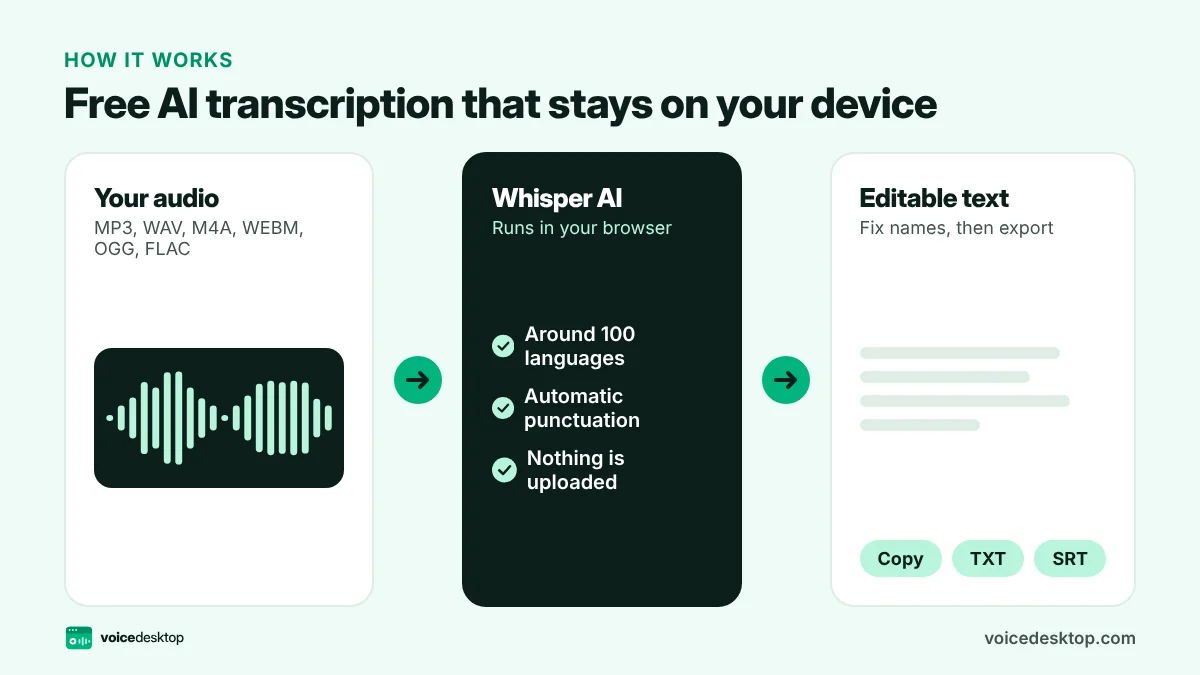
The transcription runs on your own device. Your audio is not uploaded to our servers or to anyone else. Only the open source AI model is downloaded to your browser.
Step 5: Edit, copy or download
When it is done, the full transcript appears in an editable text box.
- Fix any names or technical terms the AI misheard.
- Add speaker names such as “Interviewer:” and “Guest:” if you need them.
- Press Copy text to paste it anywhere.
- Press Download TXT for a plain text file.
- Press Download SRT for a subtitle file with timestamps. You can upload it to YouTube or load it into a video editor.
How accurate is free AI transcription?
The tool uses Whisper, an open source speech recognition model from OpenAI. It is tuned for English speech and adds punctuation automatically. With clear audio, the Accurate setting gets most words right.
Accuracy drops when:
- there is loud background music or noise
- several people talk at once
- the recording is very quiet or very distorted
- speakers use lots of rare names or jargon
How to get a better transcript
- Start with good audio. Record close to the microphone in a quiet room. Check your setup with a quick mic test.
- Clean up noise first. Record with our voice recorder, switch noise reduction to Standard, download the cleaned file, then transcribe it.
- Use Accurate for interviews and lectures.
- Split very long recordings into parts of 30 to 60 minutes. They process faster and use less memory.
Free vs paid transcription
| Free browser tool | Paid AI services | Human transcription | |
|---|---|---|---|
| Cost | Free | Usually per minute or monthly | Much higher, per minute |
| Privacy | Audio stays on your device | Audio uploaded to their servers | Shared with a person |
| Speed | Depends on your device | Fast | Hours to days |
| Speaker labels | Add them yourself | Often included | Included |
| Best for | Everyday, private transcription | Teams and high volume | Legal or broadcast quality |
For most personal and small business needs, a free browser tool is more than enough.
Common uses
- Meetings: turn a recording into notes and action points.
- Interviews: pull accurate quotes without replaying the tape.
- Lectures: create searchable study notes.
- Podcasts and videos: make show notes, blog posts and captions.
- Voice notes: turn ideas you spoke into text you can edit.
Frequently asked questions
Is there a limit on how much I can transcribe?
There is no minute limit. The only limit is your device. Most laptops handle files up to about an hour in one go.
Does it work on a phone?
Yes, on recent iPhones and Android phones. It is slower than on a computer and uses more battery, so use a laptop for long files.
Can it tell different speakers apart?
Not automatically yet. Use the SRT download to see when each line was spoken, then add names in the text box.
Ready to try it?
The Audio to Text Converter is free, needs no signup and runs privately in your browser.
Open Audio to Text Converter