
 Try the free Online Voice Recorder Record your voice, trim it and save it as MP3 or WAV. No signup.
 Recording your voice on a computer should take ten seconds, not ten minutes of searching for the right app. Whether you need a quick voice note, a voice over for a video or a recording for a class, this guide shows the simplest way on Windows, Mac and Chromebook. It also covers a method that works on all of them at once.
The fastest way on any computer: record in your browser
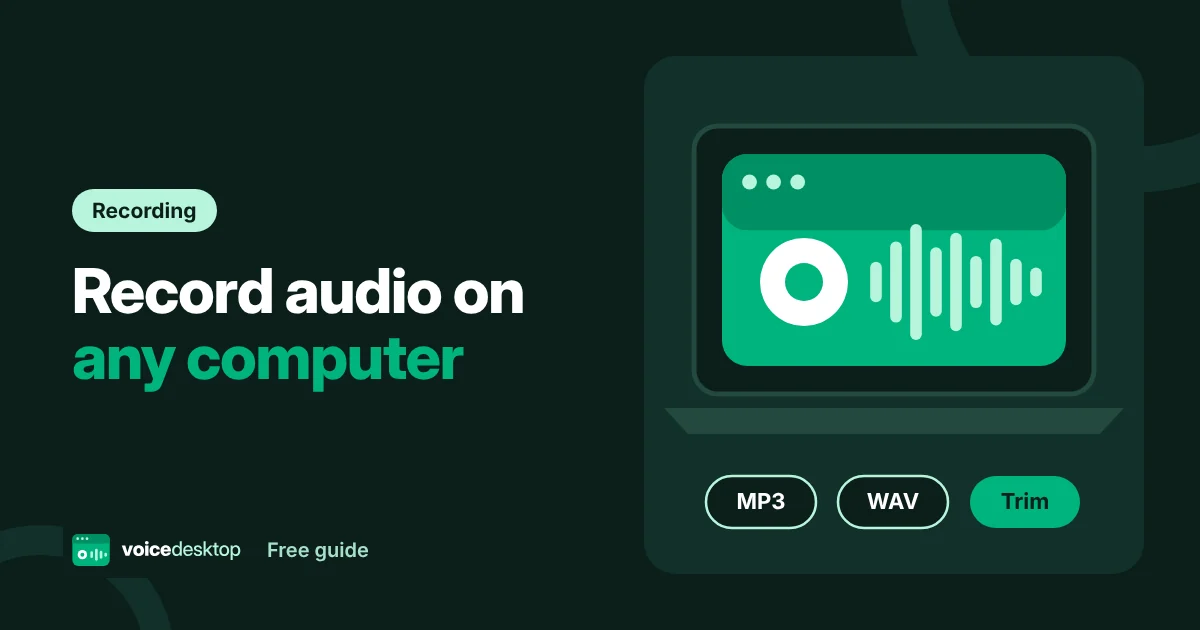
If you just want to record and save a file, a browser based recorder is the quickest option. There is nothing to install, it works the same on every computer, and you can save straight to MP3.
- Open the free online voice recorder.
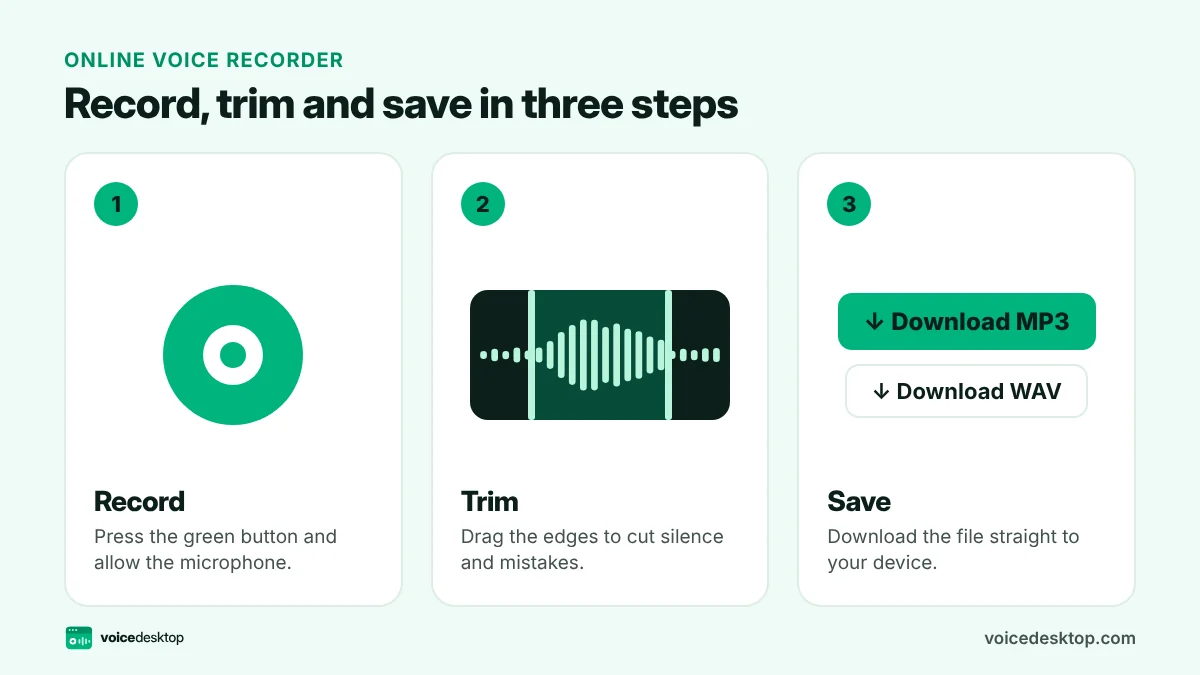
- Press the green record button and click Allow when your browser asks to use the microphone.
- Speak. You will see the waveform move as you talk.
- Press the button again to stop, then play it back.
- Drag the edges of the green area to trim the start and end.
- Press Download MP3 or Download WAV.
Because the recorder runs inside your browser, your audio is not uploaded anywhere. It goes from your microphone to the file you download. You can also switch on noise reduction after recording to clean up fan hum and background noise before saving.
How to record audio on Windows 11
Windows 11 includes an app called Sound Recorder.
- Press the Windows key and type Sound Recorder.
- Open the app and check the microphone shown in the bottom left corner. Click it to choose a different one.
- Press the red record button, or press Ctrl + R.
- Press stop when you are done. Your recording appears in the list on the left.
- Right click a recording and choose Show in folder to find the file. Recordings are usually saved in your Documents folder, inside Sound Recordings.
Sound Recorder saves as M4A by default. You can change the format to MP3, WAV, FLAC or WMA in the app settings. It is a solid choice, but it has no trimming beyond the basics and no noise reduction.
Tip: if Sound Recorder shows no microphone or the level does not move, run a quick mic test first. It tells you in seconds whether the problem is the mic or the app.
How to record audio on a Mac
Macs give you two good options.
Voice Memos
- Open Voice Memos from Launchpad or Spotlight.
- Click the red record button.
- Click Done to stop. Your memo appears in the list and syncs with your iPhone if iCloud is on.
- To save a file, drag the memo from the list onto your desktop. It saves as M4A.
QuickTime Player
- Open QuickTime Player.
- Choose File then New Audio Recording.
- Click the small arrow next to the record button to pick your microphone and quality.
- Record, stop, then choose File then Save.
QuickTime is handy when you want to choose the exact microphone and quality, for example a USB mic for a podcast.
How to record audio on a Chromebook
Some newer Chromebooks include a Recorder app, but many do not. The simplest option on any Chromebook is the browser method above. Open the voice recorder in Chrome, press record and download your MP3. Your file is saved to the Downloads folder in the Files app.
Which method should you use?
| Method | Works on | File formats | Trim | Noise reduction |
|---|---|---|---|---|
| voicedesktop online recorder | Windows, Mac, Chromebook, phones | MP3, WAV | Yes | Yes, AI powered |
| Windows Sound Recorder | Windows 11 | M4A, MP3, WAV, FLAC, WMA | Basic | No |
| Mac Voice Memos | Mac, iPhone | M4A | Yes | Basic enhance option |
| QuickTime Player | Mac | M4A | Yes | No |
If you switch between computers, or you need to share an MP3 quickly, the browser recorder is the easiest. If you live on one platform and like built in apps, the native options are perfectly good.
Tips for a clear recording
Whatever you use, these small habits make a big difference:
- Get closer to the microphone. About a hand’s width from a headset or USB mic is ideal. With a laptop mic, sit straight in front of the screen.
- Choose a soft room. Curtains, carpets and sofas soak up echo. Bare kitchens and bathrooms make you sound distant.
- Turn off fans and notifications. Steady background noise is the most common problem in home recordings.
- Leave a second of silence at the start and end. It makes trimming easy and avoids cutting off your first word.
- Do a short test first. Record five seconds, play it back, then adjust before the real take.
Turn your recording into text
Need a written version of what you said? Save your recording and drop it into the free audio to text converter. It uses the Whisper AI model in your browser, so your words stay private. If you would rather skip the recording step, try voice typing to see your words appear as you speak.
Frequently asked questions
Is there a time limit when recording in the browser?
No fixed limit. Long recordings are only limited by your computer’s free memory. For anything over an hour, save in parts so a crash cannot lose your work.
Why does my browser ask for microphone permission?
Browsers protect your privacy by asking before any website can use your microphone. Click Allow to continue. You can change your mind later from the icon to the left of the web address.
Which format should I choose, MP3 or WAV?
Choose MP3 for small files that are easy to email or share. Choose WAV if you plan to edit the audio in another program, because it keeps every detail.
Ready to try it?
The Online Voice Recorder is free, needs no signup and runs privately in your browser.
Open Online Voice Recorder