
 Try the free Voice Memo to Text Transcribe iPhone and Android voice memos into notes. No signup.
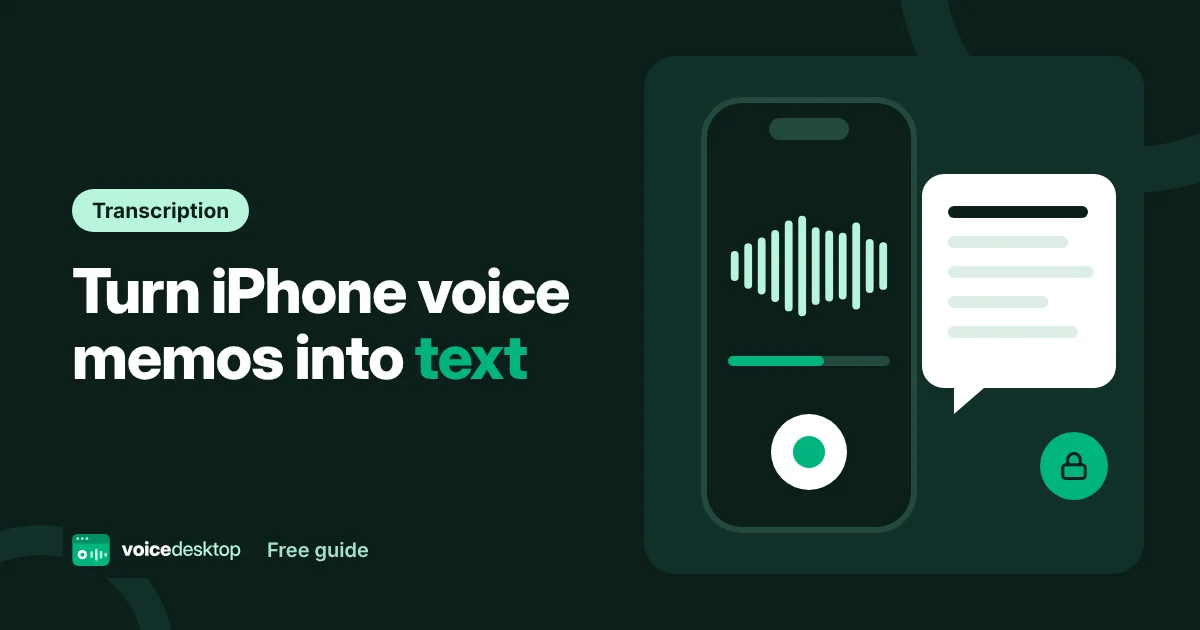
 Voice Memos is one of the most useful apps on the iPhone. You can capture an idea, a to do list or a meeting summary in seconds. Getting that information back out as text is the hard part. This guide shows you how to turn any voice memo into clean, editable text for free, without installing another app.
Does the Voice Memos app have transcripts?
Recent versions of iOS can show a transcript inside Voice Memos for some languages and devices. It is handy for a quick look, but it is not always available, and it can be awkward to copy, edit or export.
If you want text you can edit, share or download, use the method below. It works with any memo, on any iPhone, and also on Android.
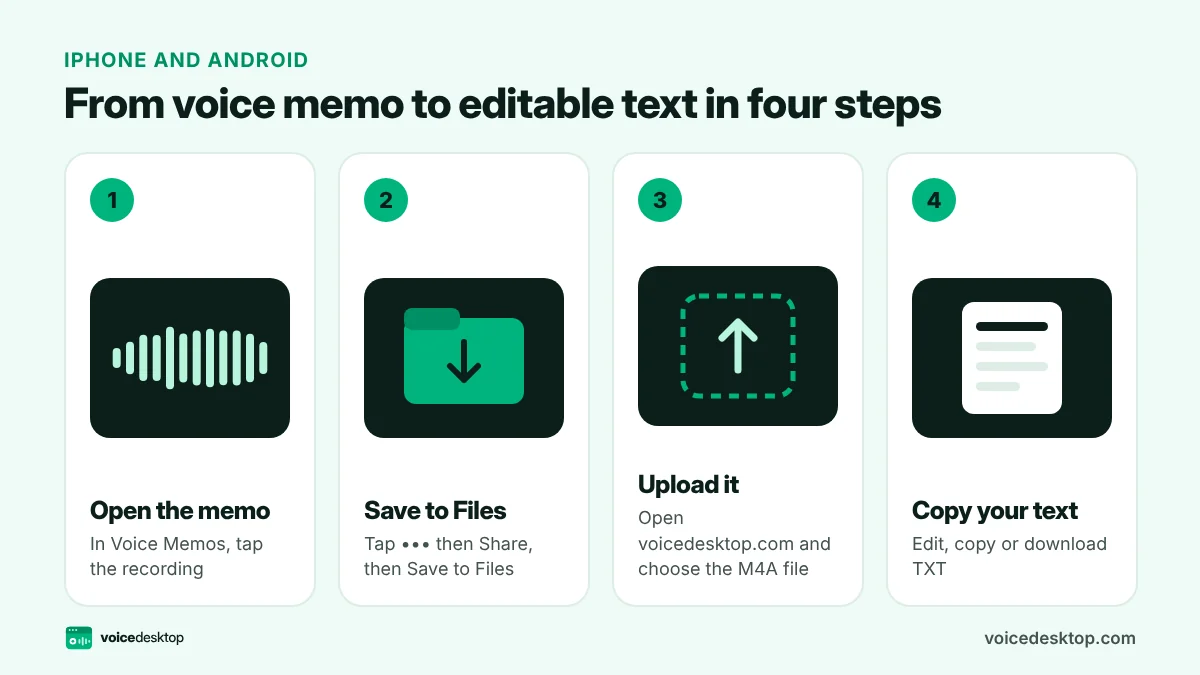
Step 1: Save the voice memo as a file
iPhone voice memos are saved as M4A files. First, save the memo to the Files app.
- Open Voice Memos and tap the recording.
- Tap the three dots button.
- Tap Share.
- Choose Save to Files and pick a folder, such as On My iPhone or iCloud Drive.
You can also share the memo to your computer with AirDrop, email it to yourself, or drag it out of the Voice Memos app on a Mac.
Step 2: Open the voice memo to text tool
On your iPhone, open Safari and go to the free voice memo to text tool. On a computer, open the same page in any browser.
Step 3: Upload the memo
Tap the upload box. On iPhone, choose Browse and find the memo in the Files app. On a computer, drag the M4A file onto the box.
The tool reads M4A directly. You do not need to convert it to MP3 first.
Step 4: Transcribe
- Leave Accuracy on Accurate for the best result, or choose Fast for short memos on older phones.
- Leave Accurate selected for the best result.
- Tap Transcribe audio.
The first time, your browser downloads the AI model. After that it is cached and starts quickly. Your memo is transcribed on your phone or computer. It is never uploaded.
Step 5: Copy or download the text
When the text appears, you can:
- tidy it up in the text box
- tap Copy text and paste it into Notes, Mail, WhatsApp or any app
- tap Download TXT to save a text file
- tap Download SRT if you want timestamps
What about Android voice recordings?
Android recorder apps usually save M4A, MP3 or OGG files. Share the recording to your Files or Downloads folder, then upload it to the voice memo to text tool in Chrome. WhatsApp and Telegram voice notes also work if you save them as files first.
Tips for memos that transcribe well
- Hold the phone close, about 15 to 20 centimetres from your mouth.
- Do not cover the microphone at the bottom of the phone with your hand or case.
- Pause between topics. It helps the AI split sentences properly.
- Spell out unusual names the first time you say them.
- Record somewhere quiet. Wind and traffic are the biggest problems. If you cannot avoid noise, record on your computer with our voice recorder and turn on noise reduction.
Is it safe for private memos?
Voice memos are often personal: health notes, family matters, business ideas. That is why this tool runs entirely in your browser. The memo is opened by your browser, transcribed by an AI model on your device, and never sent to us. There is no account and no history stored anywhere.
Should you transcribe on the phone or a computer?
| iPhone | Computer | |
|---|---|---|
| Best for | Short memos under 10 minutes | Long memos and batches |
| Speed | Slower | Faster |
| Battery | Uses a fair amount | Not an issue |
| Convenience | No file transfer needed | Need to move the file over |
For quick memos, transcribing on the phone is perfect. For anything longer than 15 minutes, a laptop is faster.
Frequently asked questions
Do I need to convert M4A to MP3 first?
No. The tool reads M4A files directly.
Does it work with memos in other languages?
Not at the moment. The transcriber is tuned for English speech only.
Why is my transcript missing some words?
Usually because of background noise or speaking far from the phone. Try the Accurate or Most accurate setting, and record closer to the microphone next time.
Ready to try it?
The Voice Memo to Text is free, needs no signup and runs privately in your browser.
Open Voice Memo to Text